
DELIVERY & SHIPPING
DELIVERY & SHIPPING
All deliveries will be made between 7.30 am and 4pm Monday to Friday, excluding public holidays and weekends. If no-one is available to accept the delivery, we will re-attempt the delivery the next day. We will try our best to accommodate a specific delivery time, but this may not always be possible.
Wherever possible, all orders should be checked before being signed for. However, to limit maintain social distancing, delivery drivers may ask for your name and sign the POD on your behalf, rather than passing you their handheld device to sign.
On receipt of your order, please carefully check the supporting delivery note to ensure that the contents of your delivery match the items mentioned on the delivery note. If there are any discrepancies, see below for advice on reporting shortages or missing items, picking errors and damaged items.
STATIONERY DELIVERY
Orders placed online or over the phone before 5pm will be delivered the next working day (subject to the items being in stock). We endeavour to process all orders emailed to Customer Service on the same day, but sometimes this might take a little longer.
If you need to follow up on an order, email Customer Service or call us on 01 882 2022 and our team will be happy to assist you.
FURNITURE DELIVERY & INSTALLATION
We are proud to offer our customers a vast range of office furniture carefully selected by our interiors team at Codex.
We hold a wide selection in stock in our own warehouse in Dublin 9 which can be delivered and installed within a few days. Other ranges that are made to order will take longer.
Some furniture items are delivered flat-packed and require self-assembly. For more information on delivery times and installation costs, talk to your account manager. Alternatively, you can email Customer Service or call us on 01 882 2022 and we'll do our best to help.
DELIVERY OF BULKY OR HEAVY ITEMS
Delivery of oversized items might take an extra day or two while we co-ordinate two people to lift the item or consult with you on the best day to deliver.
DELIVERIES TO APARTMENTS
For home deliveries to apartments, please meet the driver at the main entrance to your building. For all home deliveries, please include your Eircode and phone number with the order in case our driver needs to contact you.
REQUEST A CATALOGUE
REQUEST A CATALOGUE
Codex offer our customers the only Irish-made catalogue in the marketplace today.
Please see our range of bespoke catalogues showing the range of products and services that Codex offer our customers. You can get your physical copy by filling in the form below or alternatively downloading the electronic copy.
Download Your Catalogue



Online Returns Form
Returning Products is Now Easier
You can now submit return requests directly through your Codex online account using the new Online Returns Form.
This provides a quicker and more convenient way to request a return.
Watch the quick video on how to fill out the Online Return Form:
Before Submitting a Return
Products may be eligible for return if they:
- Were delivered within the past 30 days
- Are marked as returnable on the Codex website
- Are unused, undamaged, and in their original unopened packaging
Please note that non-returnable products are clearly identified on the website.
How to Submit a Return
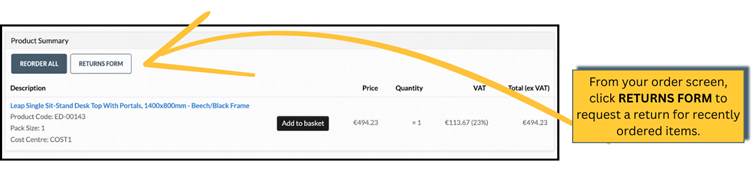
- Log into your Codex account.
- Navigate to My Account.
- Select Orders.
- Open the relevant order.
- Click Returns Form.
- Complete the requested information and submit your return request.
Return Reasons Available
The form includes several return options, including:
- Damaged
- Faulty
- Change of Mind
- Duplicate Order
- Keying Error
- Late Delivery
- Pack Size Error
- Doesn't Match Expectations
- Product Expired
- Keyed to Wrong Address
Additional Information
For damaged or faulty products, photographs must be provided to support the return request.
Once submitted:
- Customer Service will review your request.
- If approved, you'll receive a Sales Return Order reference.
- Collection arrangements will be made.
- Goods are typically collected within 5 working days, followed by account credit processing.
Please check the Codex Returns Policy
Need Assistance?
If you cannot complete the returns form, please contact Customer Service on 01 882 2022 or email cssupport@codexltd.com
Quote Request Button
Request Quotes Directly from Codex
We've introduced a new Quote Request feature to make it easier to obtain pricing for products directly through the Codex website.
How It Works
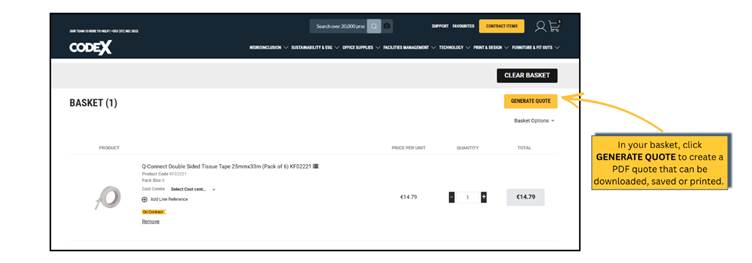
When viewing products on the basket page, you can select the Quote button, save the file and submit a request directly to our team by email.
Benefits of the New Quote Feature
- Faster quote requests
- Convenient online submission by email
- Reduced need for email threads and phone calls
Need Help?
If you have any questions regarding a quote request, please contact our Customer Service team, who will be happy to assist.
AI-Powered Search Experience
Find Products Faster with Our Enhanced Search Experience
We've upgraded the Codex search experience to help you find products more quickly and accurately.
The new AI-powered Search is designed to understand what you're looking for, even when you don't enter an exact product code or product name.
What's New?
The new search can now:
- Match partial product codes and keywords
- Suggest products as you type
- Correct common spelling mistakes
- Show related products and alternatives
- Return more relevant results based on search intent
- Display personalised recommendations for logged-in customers
Why Do Search Results Look Different?
The new search engine focuses on relevance rather than exact matching alone.
For example, if you search for 47900, you'll still see that exact product in the results. However, you may also see related products from the same range if the search engine determines they are relevant to your query.
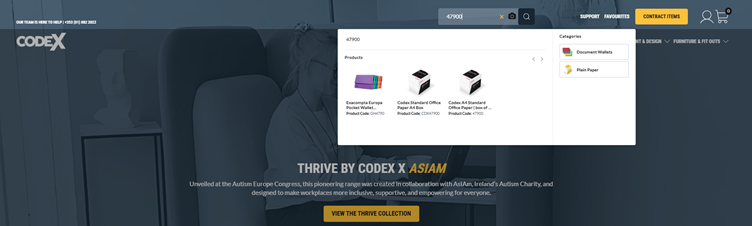
This helps customers discover alternatives and find products more efficiently.
Tips for Better Search Results
✅ Search by product code, keyword, or product description
✅ Use partial codes if you don't know the full item number
✅ Take advantage of autocomplete suggestions
✅ Check related products that may meet your requirements
Logged-In vs Logged-Out Experience
Search results may vary depending on whether you're logged into your account.
Logged-in customers can benefit from personalised search experiences that may include:
- Recently viewed products
- Previous purchases
- Recent searches
This helps surface products that are most relevant to your business.
Please follow this link to access the Frequently Asked Questions section.
NEW & IMPROVED MAIN MENU
As part of the first phase of development in our continuous improvement program, we have redesigned our main menu from the ground up. The objective was to make navigating the Codex website easier and more intuitive. Our team utilised data and analytics to design a menu that is both aesthetically pleasing and user-friendly.

Codex has developed a simple and effective dropdown menu system that makes it easier to use and navigate. Categories, subcategories and quick links are now just a hover away. This will reduce the time it takes to find your desired item.

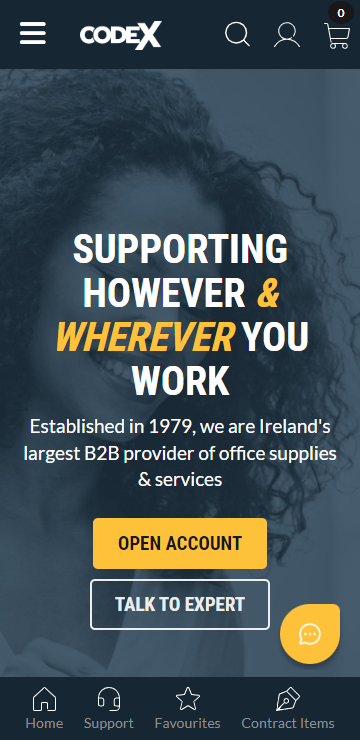
The new menu adapts to your viewing environment, whether it's scrolling down the page or even viewing on a mobile phone.

LOCATING CONTRACT ITEMS

In order to follow this guide, you will first need to be logged in to your Codex account
| STEP 1: | Find all your Contract Items by clicking the MY CONTRACT PRODUCTS in the top left corner of the screen. |

STEP 2: | You will then be brought to the Contract Items page. Here you have a number of options:
|

STEP 3: | As you browse products on the store you can use filters to ensure contract only products are shown. When you are looking at products within a category, open More Filters and toggle on ‘Display contract products only’, now only products within your contract will show on the page. |

This can also be done in your Favourites lists

CREATING FAVOURITES LIST

In order to follow this guide, you will first need to be logged in to your Codex account
| STEP 1: | Hover your mouse cursor over the Favourites tab at the top right of your screen. Then select + New List. |

| STEP 2: | Input the name of your new list. You will also be asked to select whether it is a Personal Favourites List or a Company Favourites List from the drop-down menu. This is to help differentiate lists when multiple users are on the same account. |

| STEP 3: | Your Favourites List has now been made. Find your list by hovering over the Favourites tab and clicking your selected list from the options provided. |
ADDING PRODUCTS TO YOUR FAVOURITES LIST |
To add a product to your Favourites List, there are a few ways:
Option 1: Search Bar
When you first create your list, it is empty. You can easily search a product in the search bar if
you have the product name or code available.

Option 2: File Import
You can import a simple EXCEL spreadsheet with a list of all the product codes you would like in your list.

Option 3: Favourites Icon
You can add a product to your Favourites List when browsing by clicking on the Favourites icon which appears as you hover over a product image.
You can also add a product to your Favourites List by clicking the ADD TO FAVOURITES when you are on the product profile page.
After successfully adding a product to your Favourites List you will see a pop on the screen confirming this.

Always make sure to check that you are adding the product to the correct Favourites List.
REMOVING PRODUCTS FROM YOUR FAVOURITES LIST |
| STEP 1: | Find your list by hovering over the Favourites tab and clicking your selected list from the options provided. |

| STEP 2: | In your Favourites List page, simply remove a product by clicking the icon on the right side of the product. |

MANAGING YOUR BASKET

In order to follow this guide, you will first need to be logged in to your Codex account
| STEP 1: | After adding an item(s) to your basket, navigate to the basket page by clicking on the basket icon in the left corner of the screen. Your basket preview will then appear. |

| STEP 2: | Next, click the To Basket button and you will be brought to the Basket page. |

| STEP 3: | On the Basket page you can review what item(s) you have added, adjust quantities, remove items and select Cost Centres. In order to save your basket, go to Basket Options and select Save Basket from the drop down menu. |

| STEP 4: | You will be asked to name your Saved Basket and be given the options:
|

LOAD AND DELETE BASKETS
Find all your Saved Baskets by clicking the My Account icon  in the top left corner of the screen, then select Ordering > Saved Baskets. in the top left corner of the screen, then select Ordering > Saved Baskets.You will then be brought to the Saved Baskets page:
|


ADDING COUPON CODES TO YOUR ORDER

In order to follow this guide, you will first need to be logged in to your Codex account
| STEP 1: | After adding an item(s) to your basket navigate to the Basket page |

| STEP 2: | On the Basket page, you can enter your coupon code to the section above CHECK OUT SECURELY. |

EDITING ADDRESSES AT CHECKOUT
 | ||||
In order to follow this guide, you will first need to be logged in to your Codex account
The focus of this guide is Delivery Details If there are any incorrect contact details, notify your account manager or get in touch with Customer Support.
DELIVERY DETAILS The address you provided when setting up your account is the address that will automatically be populated in this section. You can add alternative addresses by selecting +New Address, however this is only available if your Codex account authorises you to do this. If this function is not available on your account, simply contact your account manager or get in touch with Customer Support and request it be enabled. Once it is enabled you may add new addresses for delivery.
ADDING A NEW ADDRESS
To enter your address manually simply click the dropdown arrow to expand the Delivery Details Section
|


COST CENTRES AND BUDGETS

In order to follow this guide, you will first need to be logged in to your Codex account
Cost Centre is the term used for where the cost of a purchase(s) is to be sent to within a business. Some businesses may only have one but larger ones may have more i.e HR, Accounts or Finance.
Cost Centres can easily be set up on your account, simply contact Customer Support and this can be arranged.
| Navigate to Cost Centres by clicking the My Account icon and selecting Cost Centres from the menu. Here you will see all of the Cost Centres associated with your Codex account. You can also access your Cost Centres via your Account Dashboard |

| To view a breakdown of your Cost Centre spending simply hover your cursor under the Current Amount section. You can also do this by clicking 'view' to inspect the Cost Centre. |

ACCOUNT APPROVER

In order to follow this guide, you will first need to be logged in to your Codex account
Being an approver of an account means you can control and authorise orders and budgets. There can be multi-tier approvals as well as approval workflows of order confirmation that can be set up on your account. If you do not have this facility on your account and you would like to have it set up, contact your account manager and we can have this arranged for you. |
DEFINITIONS |
| REQUESTER | The user that needs an order approved. Any user can be setup to have any other user approve their orders. |
| APPROVER | This is a standard approver.
|
| SUPER APPROVER | This is a standard approver that can also edit orders. They can Approve or Reject. They can also edit orders
|
| EXECUTIVE APPROVER | This is a standard approver that can also approve other approvers orders
|
HOW THE APPROVAL PROCESS WORKS |
STEP 1: ORDER REQUIRES APPROVAL
Once a user places their order they will be notified that their order has been sent for approval. This user is now a 'requester'

Users can view all Order Approval requests via the Orders widget on their account Dashboard. Simply click the Awaiting Approval tab in Orders to see the status of order requests.

STEP 2: ORDER REQUIRES APPROVAL
An Order Approval email is sent to all approvers selected as an approver for a 'requester'. When an Approver wishes to review an order request they will need to navigate to Orders on their account Dashboard then click the Awaiting Approval tab.
After selecting an order to view, the approver will have an option to 'Accept' or 'Reject' this order. Once an order is approved the status of the order will change to 'In Progress'. This is status will also update for the requester.

- If an approver is not selected or the order is beyond any of the approvers settings of all of the approvers this email is sent to the Account Admin set for the account.
- If an Executive Approver is selected, once the previous approver has approved the order, the executive approver will receive this email.
- Once the order is approved it will immediately be processed.
ORDER NOT APPROVED
In the case that an order is not approved, an update email will be sent only to the requester who's order was rejected
